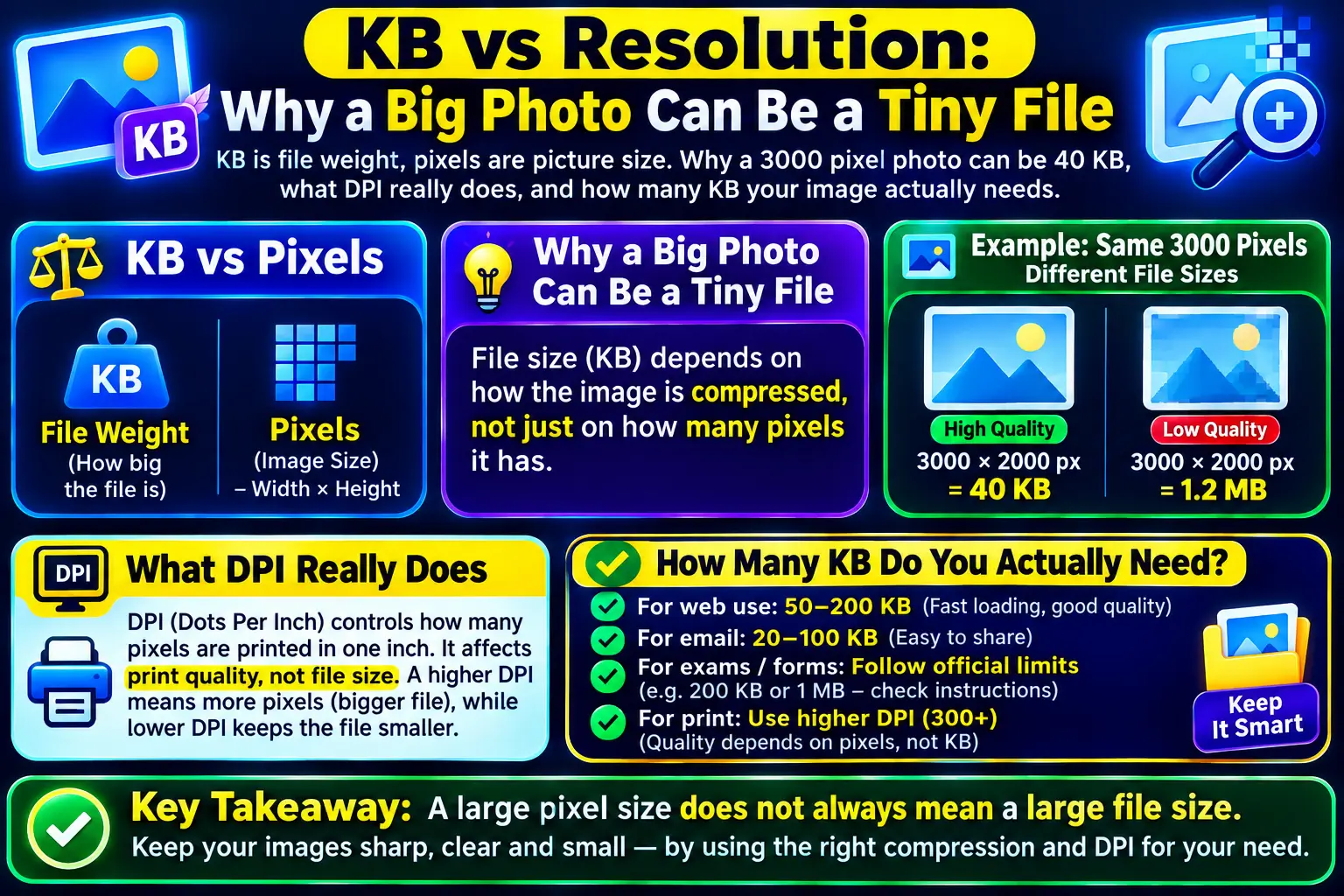
KB measures how heavy an image file is. Pixels measure how big the picture is. They aren’t the same, which is why a 3000-pixel photo can be only 40 KB while a small signature scan can be 900 KB. This guide explains both, plus what DPI actually does and how many KB an image really needs.
The short answer
KB and pixels measure two completely different things about the same photo. Pixels are how big the picture is. KB is how heavy the file is.
They are related, but loosely. One doesn’t tell you the other, which is why a photo can pass a form’s pixel check and fail its KB check at the same time.
| Property | Dimensions | File size |
|---|---|---|
| Measured in | Pixels, for example 600 by 800 | KB or MB |
| Tells you | How large the picture is | How much storage it uses |
| Changed by | Resizing or cropping | Compression, format, or resizing |
| Form error | Invalid dimensions | File size exceeds limit |
The trap, and it works in both directions
Most guides say a bigger photo means a bigger file. That is only a rough tendency, and relying on it is what leaves people stuck.
A huge photo that is tiny in KB
A 3000 pixel wide photo of a plain white wall can land at 40 KB. There is almost nothing in it to store. Every part of the image looks like every other part, and compression is very good at that.
So if a form demands a minimum of 50 KB, this photo fails, even though it is enormous.
A tiny photo that is heavy in KB
A 400 pixel scan of a signature on textured paper, saved as PNG, can sit at 900 KB. Paper grain gives the compressor thousands of tiny details to record, and PNG stores every one of them exactly.
The rule to remember: file size follows detail, not size. Noise, texture, sharp edges, and busy backgrounds all cost bytes. Smooth areas cost almost nothing.
What actually decides the KB
Four things, in the order they matter.
- How many pixels there are. Double the width and the height and you have four times as many pixels to store.
- How much detail is in the picture. A busy street costs far more than a face against a plain wall.
- The format. JPG and WebP throw away detail to save space. PNG throws away nothing, so PNG files are usually much heavier.
- The quality setting. The dial the compressor turns. Lower quality means fewer bytes and less detail.
Notice that only the first one is about size. The other three are about content and choices.
DPI, the third number that confuses everyone
DPI, sometimes written PPI, is a printing instruction stored as a label inside the file. It says how tightly to pack the pixels when this image is printed on paper.
It adds no pixels and it removes no pixels. Changing a file from 72 DPI to 300 DPI does not make it sharper, does not make it bigger, and does not change the file size in any meaningful way. Nothing about the picture changes at all.
On a screen, and in almost every online upload, DPI is ignored completely. It only matters when a form explicitly asks for it, and then it is a one line edit to a label.
When a form gives the size in centimetres
Some forms ask for 3.5 cm by 4.5 cm instead of pixels. Convert it yourself:
pixels = centimetres multiplied by DPI, divided by 2.54
At 300 DPI, 3.5 cm by 4.5 cm works out to roughly 413 by 531 pixels. Round to the nearest whole pixel and you are safe.
How many KB does a photo actually need?
This is the question nobody answers, and it is the one that decides whether your result looks clean or ruined.
The useful measure is bits per pixel. Take the file size, turn it into bits, and divide by the number of pixels. It tells you how much file is left for each dot in the picture.
| Dimensions | Pixels | Bits per pixel | Result |
|---|---|---|---|
| 600 by 800 | 0.48 MP | 0.85 | Very good, safe for any form |
| 1200 by 1600 | 1.92 MP | 0.21 | Heavy artifacts, clearly damaged |
| 3000 by 4000 | 12 MP | 0.03 | Unusable |
The bands, measured on real files rather than copied from anywhere:
- 1.2 and above: excellent, no visible difference
- 0.8 to 1.2: very good
- 0.55 to 0.8: acceptable, slightly soft up close
- 0.35 to 0.55: visible artifacts, worst around text and edges
- Below 0.35: heavy artifacts
This is why the same 50 KB target can look perfect for one person and terrible for another. It was never about the tool. It was about how many pixels the 50 KB had to cover.
The order that fixes almost everything
Look at that table again, and the practical rule falls out on its own.
- Resize the dimensions first, down to what the form actually asks for
- Then compress to the KB target
Compressing a 12 megapixel photo straight down to 50 KB forces the encoder into its worst setting and the result is a blurry mess. Scaling to 600 by 800 first throws away pixels the form did not want anyway, and the same 50 KB then has four times as much room per pixel.
Anyone who tells you a tool can hit 50 KB at full resolution with no quality loss is not describing something that exists. The honest position on quality sets out the numbers behind that.
One more thing about KB itself
KB is ambiguous. Some systems treat 1 KB as 1024 bytes and some as 1000 bytes. So a 50 KB limit might mean 51,200 bytes or 50,000 bytes, and the form rarely says which.
When a limit is a maximum, aim at the smaller reading. Land at 50,000 bytes and you pass either way. This is a two second decision that avoids a rejection you would never understand.
The exact size tool on the homepage lets you type the number and lands on that byte, in either direction. If you are still not sure why your upload failed, the guide to form rejection errors works through each error message one at a time.
For a neutral technical background on how pixel counts and print sizes relate, the Wikipedia article on image resolution is a solid reference.
Frequently asked questions
Does reducing the KB size change the pixel dimensions of my photo?
Not by itself. Compression lowers the file size while the width and height in pixels stay the same. Dimensions only change if you or the tool deliberately scale the image down.
Why is my 3000 pixel photo only 40 KB?
Because file size depends on how much detail there is to store, not on how many pixels there are. A plain background with soft focus compresses to almost nothing even at very large dimensions.
Does changing DPI reduce my file size?
No. DPI is a printing instruction stored as a label inside the file. Changing it from 72 to 300 does not add or remove a single pixel and does not change the file size in any meaningful way.
Should I resize the dimensions first or compress to KB first?
Dimensions first, then KB. Scaling to the required pixel size removes data the form does not want anyway, which means the compressor has an easier job and the result looks sharper.
1 thought on “KB vs Resolution: Why a Big Photo Can Be a Tiny File”